Dialogue
What is a Dialogue?
A dialogue is a set of dialogue lines. Dialogue liens themselves contain a text content, an optional portrait and a character name.
Example of a Dialogue file (.rdiag):
{
    "diag":[
        {
            "characterName":"Chara",
            "hasOptions":false,
            "hasPortrait":false,
            "imageId":"",
            "options":[],
            "text":"My dialogue <red>text!</red>"
        },
        {
            "characterName":"Character",
            "hasOptions":true,
            "hasPortrait":true,
            "imageId":"xenith-portrait.png",
            "options":[
                {
                    "name":"Option 1",
                    "nextDialogue":"mydiag.rdiag"
                },
                {
                    "name":"Option 2",
                    "nextDialogue":"diag.rdiag"
                }
            ],
            "text":"Spooky <red>RED</red> text!"
        }
    ]
}
Creating and editing a Dialogue
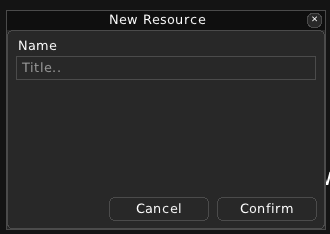
For a Dialogue, you just need a name.
When viewing a Dialogue, you will see an “Add a new line” button and a list of all the dialogue lines. New Dialogues will have no dialogue lines by default.
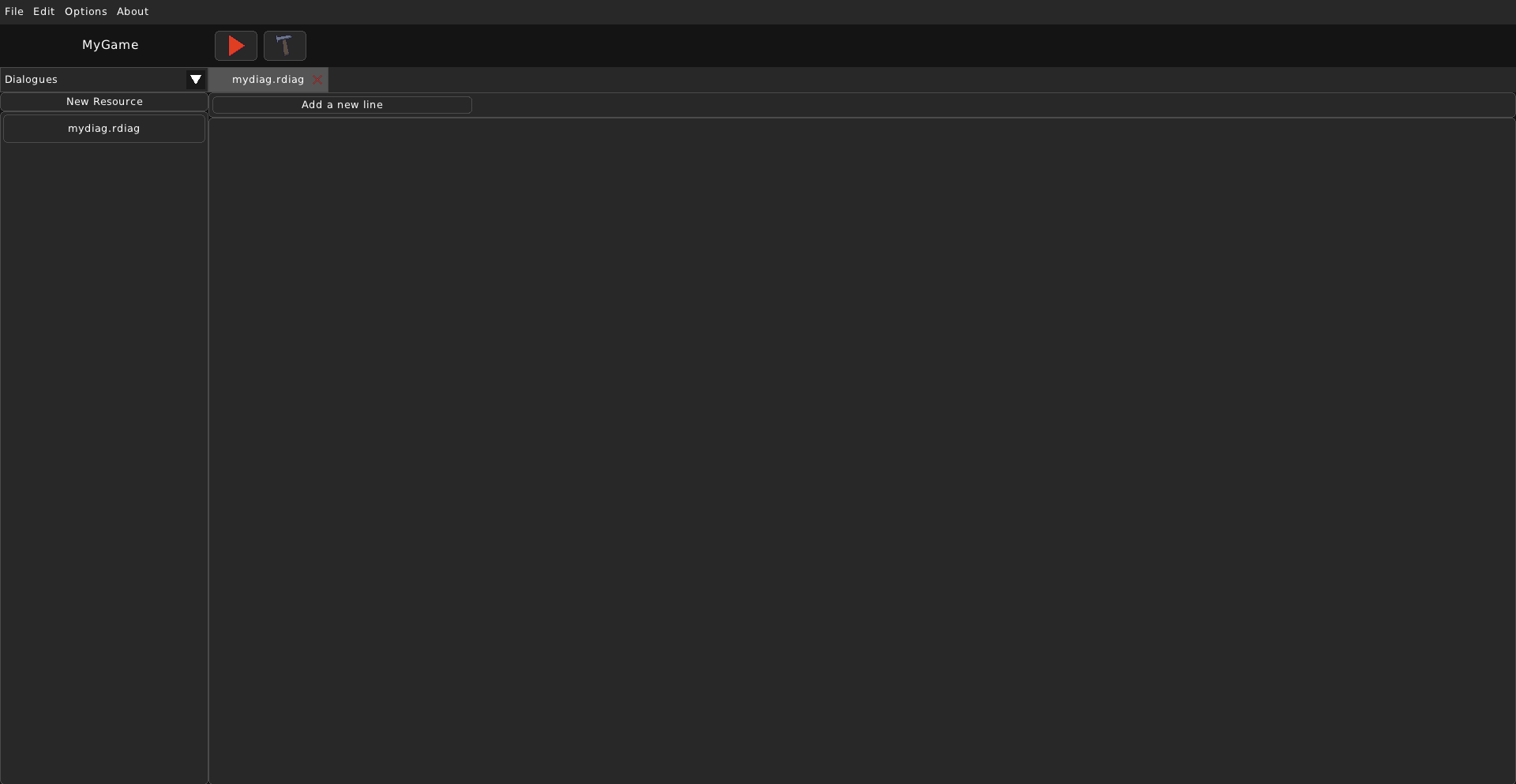
The “Add a new line” button will add a new line to this Dialogue.

The “Has a portrait?” option sets whether this line will have a portrait image shown for it. If it is on, then you can select an image to be shown.
You can also edit the Character name and the text content for the dialogue line. Dialogue text supports XML-like tags for formatting the text or achieving other effects. All tags must have a closing tag.
Color tags: - <lightgray>, <gray>, <darkgray>, <gold>, <yellow>, <orange>, <pink>, <red>, <maroon>, <green>, <lime>, <darkgreen>, <skyblue>, <blue>, <darkblue>, <purple>, <violet>, <darkpurple>, <beige>, <brown>, <darkbrown>, <magenta>, <white>, <black>
<delay> - Adds a delay in the typewriter effect in the dialogue UI.
<textSize size=”int”> - Changes the size of the text. It has one property size which is to be set to a number. Example usage:
<textSize size="16">my text!</textSize><font> - Changes the font of the written text. Example:
<font font="LanaPixel">My text!</font>- <padding> - Gives the written text a padding. It can be either in pixels of percentage of the dialogue box.
Example for pixels:
<padding px="20">Padded text in pixels</padding>Example for percentage:
<padding percent="20">Padded text in percentage</padding>
<sound> - Plays a different sound while typing out this text. Example:
<sound id="sheep">Baa!</sound><nl> - Positions the text on a new line. Example:
<nl>text</nl>
The ‘X’ button deletes this line.
